My Dashboard
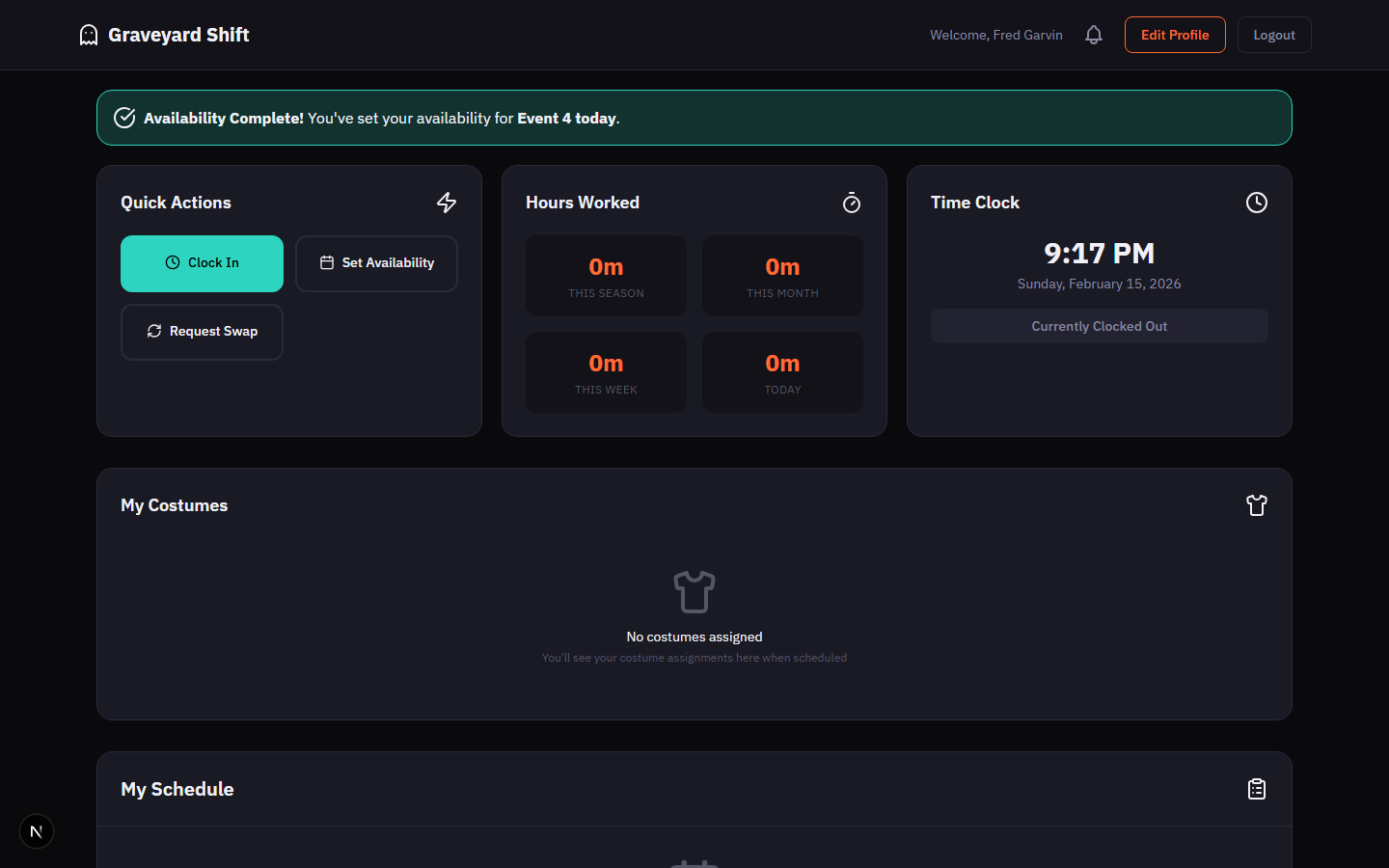
Your Employee Dashboard is the first thing you see after logging in. It shows your upcoming shifts, hours worked, time clock status, and quick actions -- everything you need at a glance.
What You See When Logging In
After signing in, you land on the Employee Dashboard. This is your home base in Graveyard Shift. The dashboard loads your data automatically and displays a personalized greeting along with everything relevant to your current and upcoming shifts.
Log in to Graveyard Shift
Enter your email and password on the login page. After a successful login, you are redirected to your Employee Dashboard automatically.
Review the welcome banner
The top of the dashboard displays a personalized greeting with your name (for example, "Welcome, John Doe"). If you are scheduled to work today, a prominent alert appears below the greeting showing your position, area, and shift time.
Explore the dashboard cards
The dashboard is organized into cards: Quick Actions, Time Clock, Hours Worked, My Schedule, and Assigned Costumes. Each card gives you a focused view of one aspect of your work. Scroll down to see all cards on smaller screens.
Today's Shift Alert
When you are scheduled to work today, a highlighted alert appears at the top of the dashboard with the message "You're scheduled today!" followed by your assignment details. The alert shows your position and area (for example, "Monster 1 in Haunted Forest") so you know exactly where to report.
If you are not scheduled for today, this alert does not appear and the dashboard displays only the standard cards.
Quick Actions
The Quick Actions card provides one-tap access to the most common tasks. The available actions are:
- Clock In / Clock Out -- Records the start or end of your shift. The button shown depends on your current clock status. When you are clocked out, you see
Clock In. When clocked in, you seeClock Out. - Set Availability -- Opens the Set Availability page where you can mark which event dates you are available to work.
- Request Swap -- Opens the swap request page where you can request to trade a shift with another employee.
Upcoming Shifts and Assignment Details
The My Schedule card is where you see all your upcoming assignments. Each shift entry includes the date (formatted with the day of the week), the start and end times, your assigned position and position number, the area you are assigned to (with its icon), and a status badge indicating when the shift occurs relative to today.
Locate the My Schedule card
Scroll down to the My Schedule card. It lists your upcoming shifts sorted by date, with the nearest shift at the top. Each entry shows the date, time range, position name and number, area name, and a color-coded status badge.

Understand the status badges
Each shift displays a status badge. A green "Today" badge means the shift is happening today. A blue "Tomorrow" badge means the shift is the next day. A blue "Upcoming" badge appears for shifts further in the future. On October 31, a special "Halloween!" badge may appear.
Confirm attendance for today's shift
If you have a shift scheduled for today and attendance confirmation is enabled, a Confirm Attendance button appears below the shift details. Click it to let your admin know you are on your way. Once confirmed, the button is replaced with a green "Attendance Confirmed" indicator.
Hours Tracked
The Hours Worked card displays a 2x2 grid of time statistics covering four periods:
- This Season -- Total hours accumulated across the entire season.
- This Month -- Hours worked in the current calendar month.
- This Week -- Hours worked in the current calendar week.
- Today -- Hours worked so far today (updates after you clock out).
Values are displayed in a compact format: whole hours use the "h" suffix (for example, "12h"), hours with minutes show both (for example, "4h 30m"), and zero hours display as "0m". These numbers are calculated from your completed work sessions and update each time you clock out.
Time Clock Card
The Time Clock card shows a live clock display with the current time and date, along with your clock status. The status indicator shows either "Currently Clocked In" (green) or "Currently Clocked Out" (default). When clocked in, the card also shows your current session start time.
For full details on how clocking in and out works, including location capture and geofence validation, see the Time Clock guide.