Viewing My Schedule
See your assigned shifts, check position and area details, and confirm attendance for today's shifts -- all from your Employee Dashboard.
Where to Find Your Schedule
Your schedule lives on the Employee Dashboard in the My Schedule card. There is no separate schedule page to navigate to -- everything you need is right on your dashboard after logging in.
Log in to your Employee Dashboard
After logging in, you land on your Employee Dashboard. Your schedule is displayed in the My Schedule card, which appears below the Quick Actions and Time Clock cards.
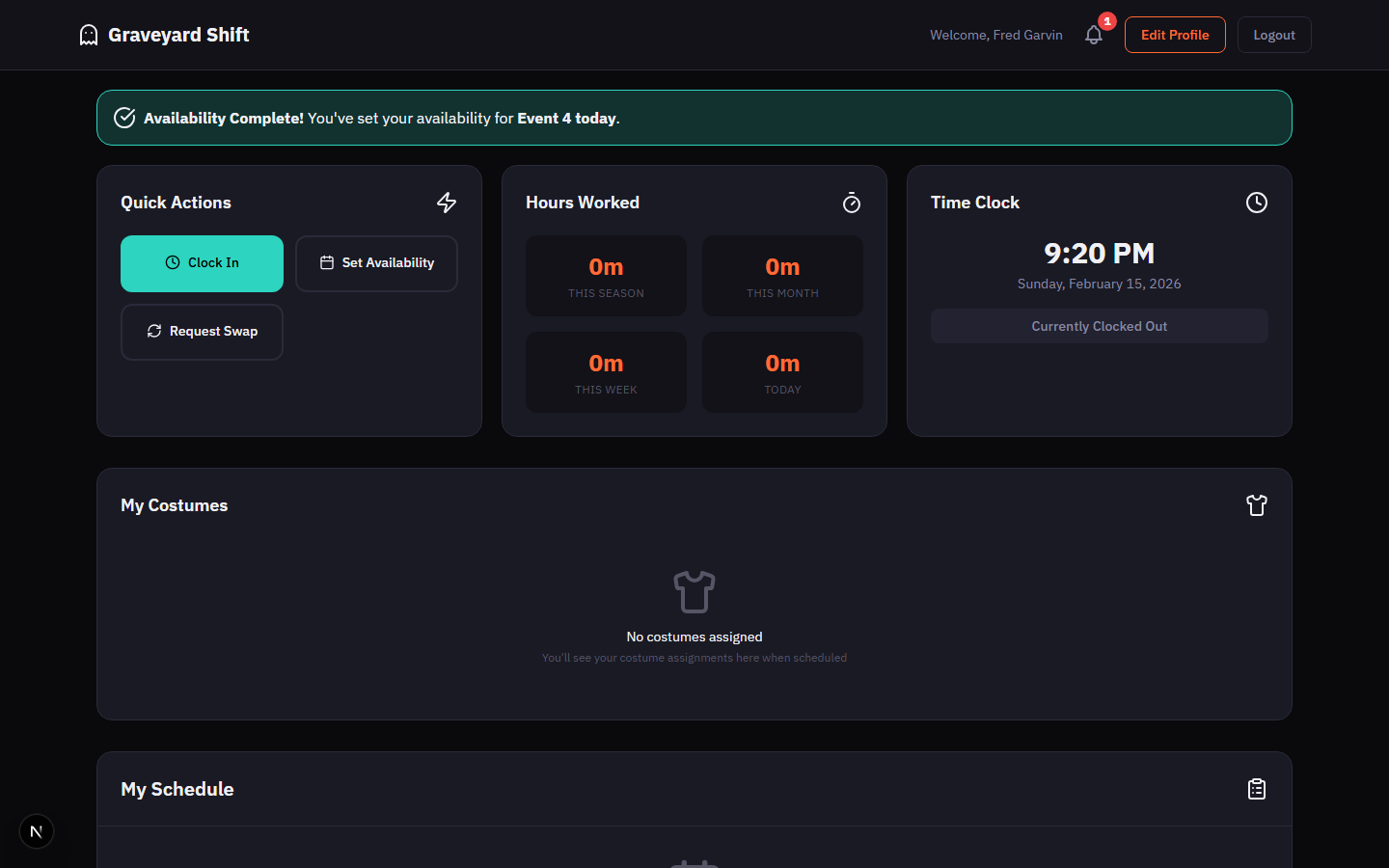
Scroll to the My Schedule card
The My Schedule card lists your assigned shifts sorted by date, with the nearest shift at the top. The card header shows "My Schedule" with a clipboard icon. If you have no upcoming shifts, an empty state appears with a calendar icon and the message "No upcoming shifts scheduled."
Review each shift entry
Each shift entry is a rounded card showing the formatted date (for example, "Today, Feb 11"), the time range (for example, "7:00 PM - 11:00 PM"), your assigned position with its number (for example, "Monster 1"), and the area name with its icon (for example, "Haunted Forest"). A color-coded status badge appears on the right side of each entry.
Position, Area, and Time Details
Each shift entry contains all the information you need to know where to go and when. Here is what each piece of information means.
Date and day of the week
The top line of each shift shows the date formatted relative to today. If the shift is today, it displays "Today" followed by the formatted date. Tomorrow shows "Tomorrow" with the date. Dates further out show the full date with the day of the week.
Start and end time
Below the date, the shift time range is displayed in 12-hour format with AM/PM (for example, "7:00 PM - 11:00 PM"). Times are shown in your event timezone as configured by your admin.
Position and area
The third line shows your assigned position name and number (for example, "Zombie 2") followed by a dash, the area icon, and the area name (for example, "Graveyard"). This tells you exactly where to report and what role you are filling.
Status badge
Each shift has a color-coded badge on the right side. A green badge labeled "Today" means the shift is happening today. A blue "Tomorrow" badge indicates the next day. A blue "Upcoming" badge appears for shifts further in the future. On October 31, you may see a special "Halloween!" badge.
Use this information to plan your arrival. Know your position number so you can go directly to the right spot in your area when you arrive on site.
Confirming Your Shifts
Attendance confirmation lets you tell your admin that you have seen your schedule and plan to show up for today's shift. This helps admins identify potential no-shows early and make backup plans if needed.
Check for the Confirm Attendance button
For shifts scheduled today, a Confirm Attendance button appears below the shift details. This button only shows up when attendance confirmation is enabled by your admin and the shift has not already been confirmed.
Click Confirm Attendance
Click the button to confirm that you will attend your shift. While the confirmation is processing, the button displays "Confirming..." with a loading spinner. Once complete, the button is replaced by a green checkmark and the text "Attendance Confirmed."
Verification after confirming
After confirmation, the shift entry shows the green "Attendance Confirmed" indicator permanently for that shift. This lets your admin know you are aware of and planning to attend your scheduled shift. You cannot undo a confirmation.
Understanding the Empty State
When the My Schedule card has no shifts to display, it shows a centered calendar icon with the message "No upcoming shifts scheduled" and a subtitle suggesting you check back later or contact your manager.
This is normal between events or before your admin publishes the next schedule. If you submitted your availability and still see the empty state close to an event date, reach out to your admin to confirm whether you have been assigned.